1) Go to read.amazon.com on your computer and log in.
2) Open the book you want to copy from in the “cloud reader.”
3) Install this browser extension called BlackBox from the Chrome store
- Pin the extension to your browser (3 vertical dots in the upper right corner of chrome->pin button)
4) Go back to the Amazon Cloud reader page and click on the extension
5) Now select the text you want to copy by holding down the left mouse button and dragging over the text.
6) Once you’re done selecting the text, It’ll take some time to wait until the notification pops up in the bottom right corner of your screen
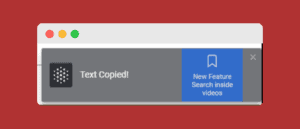
7) The text will be copied into your clipboard. You can then paste it wherever you need to.
—
Copying and pasting text from the Kindle Cloud Reader can be a bit tricky at first, but with a few simple steps, it is easy to do.

Hey Shehraj – Had a quick question. Have you come across or have heard about the issue of not being able to hear the audible narration while using the kindle app on Macbook?
mmh seems the extension need a payed subscription
You can use any tool which converts images to text. Copyfish is something i heard a lot about, Maybe you can try it 🙂
thanks for this great advice. i tried copyfish, work like a charm 🙂